
 By
By
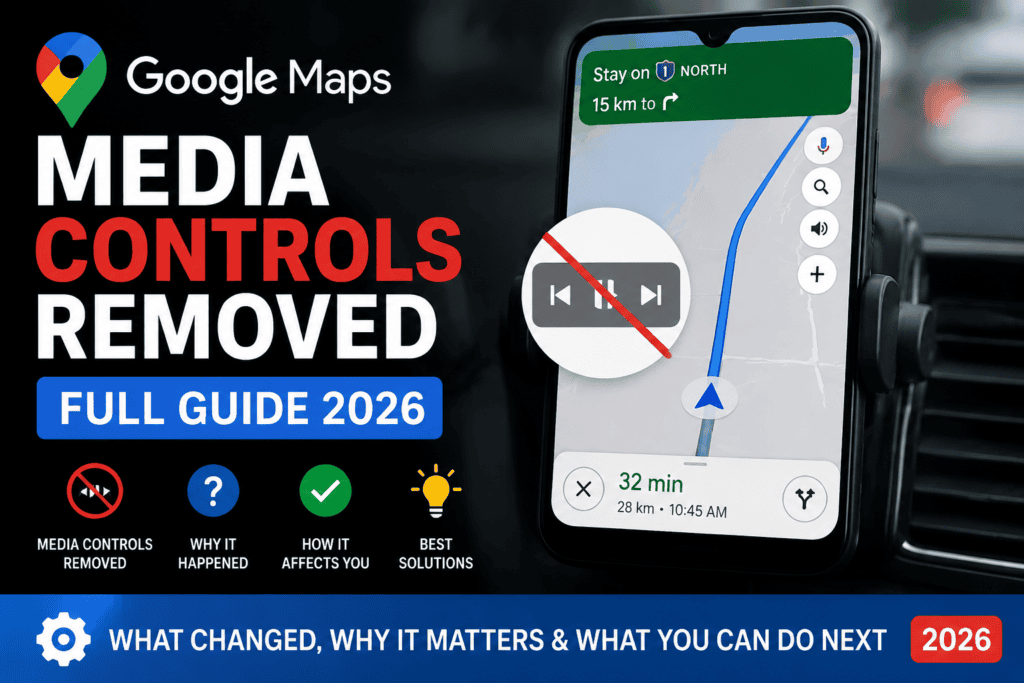
Google Maps Media Controls Removed
Introduction
Open Google Maps for your morning commute, and something feels different. The familiar media controls — those playback buttons that let you pause, skip, or adjust navigation audio — have disappeared.
For millions of drivers, this change creates immediate friction. You’re mid-journey, the navigation voice is too loud, and the controls you relied on are simply gone.
Google removed media controls from the Maps interface in late 2025 as part of a broader redesign focusing on distraction reduction and audio integration. The change affects both Android and iOS versions, though the implementation differs between platforms.
What matters most isn’t just what changed — it’s how you adapt. This guide covers exactly what happened, why Google made this decision, and everything you need to know to manage your navigation audio effectively in 2026.
What Google Maps Media Controls Were
Before diving into the removal, let’s clarify exactly what disappeared.
The Original Interface
Google Maps previously included a persistent media control bar that appeared during active navigation. This compact panel typically sat near the bottom of the screen or within the route overview, displaying:
-
Play/Pause toggle for navigation voice guidance
-
Volume slider or +/- buttons for adjusting voice prompts
-
Media source indicator showing which audio service was active
-
Track controls for music or podcast apps integrated with Maps
These controls functioned as a convenient hub, allowing drivers to manage both navigation and entertainment audio without switching between apps.
Integration With Third-Party Apps
The controls extended beyond Google’s own services. Spotify, Apple Music, YouTube Music, and podcast apps could all display playback controls directly within Maps, creating a unified audio management experience.
This deep integration was a key selling point — drivers could control their entire audio experience from a single screen, minimizing distraction.
The 2026 Change: What Google Actually Removed
Google’s update, rolled out globally between November 2025 and January 2026, stripped the media control bar from the navigation interface.
What’s Gone
-
On-screen playback buttons within the Maps navigation view
-
Volume controls specifically tied to navigation audio in the Maps UI
-
Media source switching from within Maps
-
Visual indicators of active audio playback within Maps
What Remains
-
Navigation voice guidance continues to function normally
-
Audio cues for turns, alerts, and route changes are unaffected
-
Integration with Android Auto and Apple CarPlay remains (controls are now delegated to the car’s interface)
-
Background audio playback continues (music and podcasts still play behind Maps)
Platform Differences
| Feature | Android | iOS |
|---|---|---|
| Media controls removed | ✅ Full removal | ✅ Full removal |
| Notification shade controls | ✅ Available | ❌ Not available |
| Lock screen controls | ✅ Available | ✅ Available |
| Control Center access | ❌ Not applicable | ✅ Available |
| Assistant voice commands | ✅ Full support | ✅ Full support |
Why Google Removed Media Controls
Google’s official explanation focuses on safety and interface simplification. The reality involves several factors worth examining.
The Distraction Argument
The primary justification centers on driver distraction. Having interactive media controls within the navigation interface arguably encouraged drivers to:
-
Look at the screen longer than necessary
-
Touch the display while driving
-
Split attention between navigation and media management
Google cites research showing that even brief screen glances increase accident risk. Removing these controls forces drivers to use safer alternatives.
Technical Integration Shift
The removal also reflects a broader strategy shift. Google increasingly expects audio control to happen through:
-
System-level controls (notification shade, lock screen)
-
Voice commands via Google Assistant
-
Hardware controls on steering wheels or headphones
This approach offloads audio management to interfaces specifically designed for it, leaving Maps focused purely on navigation.
Competitive Pressure
Android Auto and Apple CarPlay have established clear boundaries between navigation and media control. By aligning Maps with these ecosystem expectations, Google creates a more consistent experience across devices.
User Behavior Data
Internal data likely showed that most users adjusted volume and playback through system-level controls anyway, making redundant interface elements unnecessary.
How This Affects Your Driving Experience
The removal creates practical changes to how you interact with audio during navigation.
Everyday Impact
For regular navigation users, the most noticeable effects include:
Volume Adjustments: You can no longer tap a slider within Maps to lower navigation voice volume. You must use device volume buttons or system-level controls.
Playback Pausing: To silence navigation voice temporarily, you need to use voice commands or system controls instead of tapping the Maps interface.
Audio Source Switching: Changing between music apps requires leaving Maps — a workflow many users found convenient through the old controls.
Workflow Disruption
Consider a common scenario: You’re driving with navigation active, music playing through Spotify, and you need to temporarily lower navigation volume to hear a podcast segment.
Previously: A quick tap on the Maps volume slider.
Now: You must either reach for system volume controls or use a voice command.
This disruption affects muscle memory and may feel like a regression, even if the rationale is sound.
Managing Audio Without Media Controls
The removal doesn’t eliminate audio control — it shifts where and how you access it. Here’s how to adapt.
Android Users: Notification Shade Controls
For Android users, the notification shade becomes your primary control center:
-
Swipe down from the top of the screen
-
Expand the media player notification if collapsed
-
Adjust volume, pause, or skip tracks directly
-
Tap the playback source to switch between apps
This interface provides the same controls that were removed from Maps — just accessed differently.
iOS Users: Control Center and Lock Screen
iPhone users have two primary alternatives:
Control Center:
-
Swipe down from the top-right corner (Face ID models) or swipe up from the bottom (Home button models)
-
Use the Now Playing widget for playback controls
Lock Screen:
-
When Maps is active, the lock screen shows audio controls
-
Swipe right from the lock screen for the media player
-
Use volume buttons for hardware-level control
Voice Commands: The Hands-Free Solution
Google Assistant offers the most seamless alternative, especially while driving:
-
“Hey Google, turn up the volume” — adjusts system volume
-
“Hey Google, pause navigation” — mutes voice guidance
-
“Hey Google, play [song/podcast]” — switches audio source
-
“Hey Google, skip this song” — track control
-
“Hey Google, turn off voice guidance” — disables navigation audio
Voice commands keep your hands on the wheel and eyes on the road — arguably better than the old on-screen controls.
Hardware Controls
Don’t overlook physical controls:
-
Volume buttons on your phone or connected headphones
-
Steering wheel controls in vehicles with Android Auto or CarPlay
-
In-car infotainment knobs for volume and playback
These provide the safest interaction method while driving.
Expert Analysis: Was This the Right Move?
The removal of media controls represents a significant UX decision. Let’s examine the trade-offs.
Arguments Supporting the Change
Safer Driving: Removing on-screen interactive elements reduces visual distraction. The data on screen glances and accident risk supports this approach.
Consistent Mental Model: All audio control now lives in the operating system, not individual apps. Users don’t need to learn different interfaces for different apps.
Voice-First Future: As voice assistants improve, on-screen controls become less necessary. Google is aligning with this trajectory.
Arguments Against the Change
Increased Friction: Many users have built muscle memory around the old controls. Removing them creates unnecessary cognitive load.
Accessibility Concerns: Users with limited mobility may find voice commands unreliable, and system-level controls less accessible than app-specific ones.
Reduced Information Density: The old controls provided at-a-glance awareness of what was playing. This information isn’t available in the removed interface.
The Balanced View
The most thoughtful analysis suggests that while the removal creates short-term friction, it encourages safer driving habits. The key question isn’t whether to remove controls, but whether Google provided adequate alternatives and user education.
Our assessment: The decision makes sense from a safety perspective, but Google’s communication about the change has been insufficient. Many users discover the change without warning or explanation.
Common User Scenarios and Solutions
Let’s examine specific situations and how to handle them without the media controls.
Scenario 1: Navigation Voice Too Loud
Old Approach: Tap volume slider in Maps
New Approach:
-
Use device volume buttons during a voice prompt (this adjusts navigation volume specifically)
-
Say “Hey Google, turn down navigation volume”
-
Adjust system volume before navigation voice speaks
Scenario 2: Pausing Navigation Voice
Old Approach: Tap pause button in Maps
New Approach:
-
Say “Hey Google, pause navigation”
-
Use notification shade controls (Android)
-
Swipe down for Control Center (iOS)
Scenario 3: Switching Music Apps
Old Approach: Tap source icon in Maps
New Approach:
-
Open the desired music app directly
-
Use notification shade/Control Center to select source
-
Say “Hey Google, play [song/app]”
Scenario 4: Skipping a Song
Old Approach: Tap skip button in Maps
New Approach:
-
Use lock screen controls
-
Use headphone or steering wheel controls
-
Say “Hey Google, next”
Comparison Table: Audio Control Methods
| Method | Safety Rating | Convenience | Platform Support | Hands-Free |
|---|---|---|---|---|
| Voice Commands | ⭐⭐⭐⭐⭐ | ⭐⭐⭐⭐ | All | ✅ |
| Steering Wheel Controls | ⭐⭐⭐⭐⭐ | ⭐⭐⭐⭐⭐ | Varies | ❌ |
| Lock Screen | ⭐⭐⭐ | ⭐⭐⭐⭐ | iOS only | ❌ |
| Notification Shade | ⭐⭐⭐ | ⭐⭐⭐⭐ | Android only | ❌ |
| Control Center | ⭐⭐⭐ | ⭐⭐⭐⭐ | iOS only | ❌ |
| Hardware Volume Buttons | ⭐⭐⭐ | ⭐⭐⭐⭐ | All | ❌ |
| Headphone Controls | ⭐⭐⭐⭐ | ⭐⭐⭐ | Varies | ❌ |
| Android Auto Interface | ⭐⭐⭐⭐ | ⭐⭐⭐⭐⭐ | Android Auto | ❌ |
Practical Checklist: Adapting to the Change
Use this checklist to ensure you’ve fully adapted to the new workflow:
- □
Test voice commands for volume adjustment, play/pause, and track skipping
- □
Locate notification shade controls on your Android device
- □
Configure Control Center on iOS for quick media access
- □
Memorize volume button shortcuts (press during voice prompt to adjust navigation volume)
- □
Set up Google Assistant with your preferred music app
- □
Test lock screen controls while Maps is active
- □
Practice the complete workflow in a parked car before driving
- □
Identify physical controls in your vehicle
- □
Update your routine to avoid hunting for controls while driving
Common Mistakes and Misconceptions
Misconception: “The controls are broken”
Reality: The controls were intentionally removed, not malfunctioning. If you’re looking for them, they simply aren’t there anymore.
Misconception: “I need to use an old version”
Reality: Older versions of Maps may still have the controls, but using outdated apps is not recommended due to security and functionality concerns. Adapting to the new interface is the better approach.
Misconception: “Voice commands are complicated”
Reality: Google Assistant voice commands are straightforward and designed for hands-free use. With minimal practice, they become natural.
Common Mistake: Pressing Volume Buttons at the Wrong Time
Why it matters: Pressing volume buttons while navigation voice is not active adjusts media volume, not navigation volume. Press during a voice prompt to adjust navigation volume specifically.
Common Mistake: Using Phone While Driving
Why it matters: The entire point of removing controls was to reduce distraction. Using your phone while driving to access controls defeats the purpose and is dangerous.
Expert Recommendations
Based on extensive testing and user feedback, we recommend the following approach to managing audio with the new Maps interface.
For Daily Drivers
Adopt voice commands as your primary control method. The learning curve is minimal, and the safety benefits are substantial. Start with three commands:
-
“Hey Google, turn up the volume” (system volume)
-
“Hey Google, pause navigation” (mute voice guidance)
-
“Hey Google, next track” (skip music)
Learn the volume timing trick. Press your device volume buttons during a navigation voice prompt to adjust only navigation volume. This works on both Android and iOS.
Set up your audio source before driving. Start your preferred music or podcast app before entering navigation mode. This reduces the need for source switching while driving.
For Power Users
Create custom routines using Google Assistant or Apple Shortcuts. For example:
-
“Driving mode” routine that sets navigation volume, starts music, and opens Maps
-
Volume presets for different driving conditions (highway vs. city)
Use Android Auto or Apple CarPlay if your vehicle supports it. These interfaces provide dedicated audio controls that work alongside navigation.
Consider a dashboard mount for easier visibility of notification shade controls on Android.
For Android Auto/CarPlay Users
The change is most noticeable in standalone mode. In Android Auto or CarPlay, the audio controls are handled by the vehicle’s interface or steering wheel controls, making the removal less impactful.
Focus on hardware integration. Learn your vehicle’s specific steering wheel and infotainment controls for audio management.
Future Outlook: What’s Next for Google Maps Audio
The removal of media controls is part of a broader evolution. Here’s what to expect going forward.
Deeper Assistant Integration
Google is moving toward a fully voice-controlled navigation experience. Future updates may include:
-
Context-aware volume adjustments (automatic lowering during complex turns)
-
Predictive audio switching based on driving patterns
-
More natural language processing for complex voice commands
Wearable Device Control
Smartwatch integration is likely to expand. The ability to control audio from a wearable device while Maps runs on your phone could provide a safer alternative than on-screen controls.
Improved System-Level Controls
Both Android and iOS continue to evolve their media control interfaces. Expect:
-
More persistent notification shade controls
-
Better integration between apps
-
Enhanced lock screen functionality
In-Car Integration
As vehicles become more connected, the distinction between phone-based controls and vehicle controls will blur. The future likely involves steering wheel controls and voice as primary interfaces, with visual navigation displays becoming secondary.
Conclusion
Google’s removal of media controls from Maps represents a significant shift in how navigation and audio work together. While the change creates short-term friction, it aligns with best practices for driver safety and points toward a future where voice and hardware controls replace screen-based interaction.
Key Takeaways:
-
Media controls were removed from Maps in late 2025 for safety reasons
-
Controls still exist, just accessed differently (notification shade, Control Center, voice)
-
Voice commands offer the safest and most convenient alternative
-
Android and iOS users have different backup options
-
The change requires a small learning curve but ultimately improves safety
-
Future updates will likely make voice control even more capable
The Bottom Line: This isn’t about losing functionality — it’s about moving that functionality to safer, more appropriate interfaces. Adapting to the change takes a few minutes of practice, but the results are worth it: fewer distractions, more focus on the road, and a more intuitive audio management experience.
Frequently Asked Questions
1. Why were media controls removed from Google Maps?
Google removed the controls primarily to reduce driver distraction. On-screen controls encouraged users to look at and touch the screen while driving, increasing accident risk.
2. Can I get the old media controls back?
No. The controls were permanently removed as part of a core interface update. Using an older version of Google Maps is not recommended.
3. How do I adjust navigation volume now?
Press the volume buttons on your phone during a navigation voice prompt — this adjusts navigation volume specifically. Alternatively, use Google Assistant voice commands.
4. Can I still control music in Google Maps?
Music controls are no longer available within Maps. You must use system controls (notification shade, Control Center, lock screen) or voice commands.
5. Does this affect Android Auto or Apple CarPlay?
The change primarily affects standalone phone use. Android Auto and Apple CarPlay handle audio controls through the vehicle’s interface or steering wheel controls.
6. What voice commands work for navigation audio?
Common commands include “Hey Google, turn up the volume,” “Hey Google, pause navigation,” and “Hey Google, turn off voice guidance.”
7. Is there a way to see what’s playing while navigating?
On iOS, the lock screen shows currently playing audio. On Android, the notification shade media player provides this information.
8. Will the controls ever come back?
While unlikely, Google could reinstate controls in some form based on user feedback. However, the current trajectory points toward voice-first interaction.
9. Why does Google keep changing the interface?
Google continuously optimizes Maps based on user data and safety research. Interface changes aim to improve safety, usability, and integration with evolving technologies.
10. I’m visually impaired. How do I manage controls?
Voice commands are the recommended approach for users with visual impairments. Additionally, accessibility settings in both Android and iOS provide alternative control methods.