
 By
By
Apple TV Remote App (New Version): The Complete 2026 Guide
If you’ve picked up your iPhone to skip a commercial, only to dig through Control Center and wonder where your remote went, you’re not alone. Apple has reshuffled how the virtual Apple TV Remote works more than once in the past few years, and the most recent change — bringing the app back to the Home Screen — has left a lot of people confused about which version they’re actually using.
This guide walks through what the “new version” of the Apple TV Remote app actually is, how it differs from the Control Center widget you may already know, how to set it up correctly, what to do when it stops responding, and where third-party alternatives still beat Apple’s own tool.
A Quick History: Why There’s Confusion About “Versions”
Apple’s relationship with the Apple TV Remote app has been inconsistent enough to explain most of the confusion people run into when searching for it.
There used to be a dedicated Apple TV Remote app in the App Store. Apple removed that standalone app in 2020, folding its functionality into Control Center instead. For years afterward, the only “official” way to get a virtual remote on your iPhone was to add the Remote control tile to Control Center — a button buried a swipe-and-tap away rather than a tappable icon on your Home Screen.
That changed with the newest software cycle. Starting with iOS 27, the virtual Apple TV remote can be added back to the iPhone’s Home Screen, rather than being limited to Control Center. That’s the “new version” most people searching this term are actually asking about — not a redesigned interface, but a redesigned point of access.
This matters because the underlying remote functionality hasn’t fundamentally changed; what changed is where you find it and how you launch it. Understanding that distinction will save you a lot of troubleshooting time later in this guide.
What’s Actually New in the iOS 27 Apple TV Remote
Home Screen and App Library Access
To add the Remote to your Home Screen, swipe down on the Home Screen and search for “remote,” then tap and hold the Remote app and drag it into place. You can also find it directly in the App Library without needing to search at all.
For anyone who controls an Apple TV multiple times a day — a household streaming hub, a media room, a gym setup — this single change removes friction that’s existed since 2020. Instead of two gestures and a search every time, it becomes a single tap, the same as launching any other app.
Still Lives in Control Center Too
The Home Screen option is additive, not a replacement. The Control Center tile remains available for anyone who prefers quick access without a dedicated icon, and Apple’s own support documentation still treats Control Center as a primary entry point.
What Hasn’t Changed
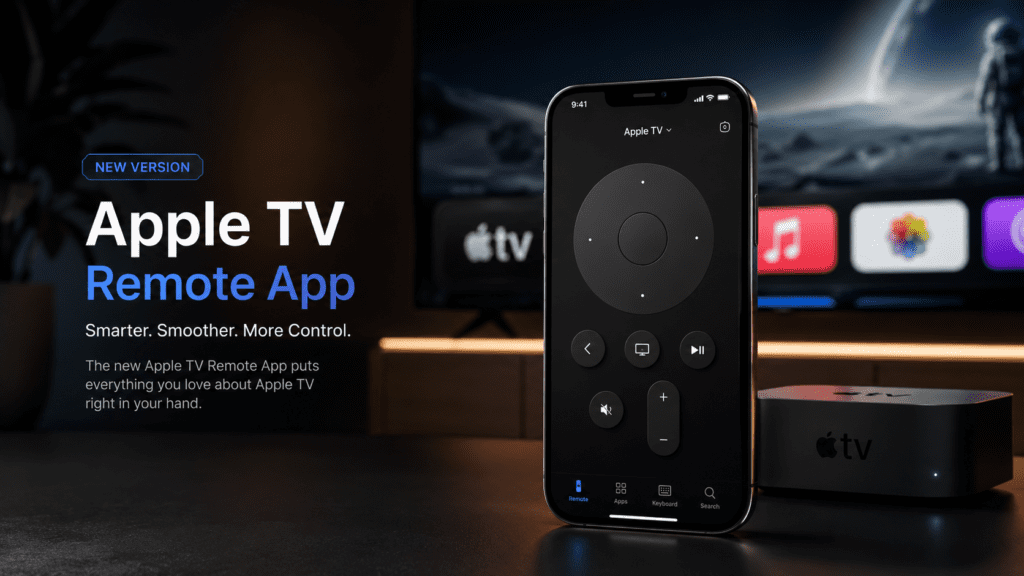
The core remote layout — directional clickpad, Siri button, mute, and playback controls — is unchanged from the Control Center version. If you’ve used the Apple TV Remote in Control Center before, the new Home Screen app will feel immediately familiar; it’s the same interface in a more accessible wrapper.
Setting Up the Apple TV Remote App (New Version)
Requirements Before You Start
- iPhone or iPad on iOS 27 or later for Home Screen placement (Control Center access works on earlier versions too)
- An Apple TV 4K, Apple TV HD, or an AirPlay-compatible smart TV
- Both devices connected to the same Wi-Fi network
This last point trips up more people than anything else in this guide. The Apple TV Remote works with Apple TV HD or later, or an AirPlay-compatible smart TV, but only when both devices share the same network. If your phone is on a guest network or a different Wi-Fi band than your TV, the remote simply won’t find a device to connect to — and there’s no error message that makes this obvious.
Step-by-Step: Adding It to Your Home Screen
- Swipe down anywhere on your Home Screen to open Spotlight search.
- Type “Remote.”
- Tap and hold the Apple TV Remote result, then drag it onto your Home Screen — or open it directly from the App Library if you’d rather not clutter your layout.
- Launch the app and tap your Apple TV or smart TV from the list of nearby devices.
- If prompted, enter the four-digit passcode displayed on your TV screen to pair the devices.
Step-by-Step: Adding It to Control Center (Still Useful as a Backup)
- Swipe down from the top-right corner of the screen (or up from the bottom edge on iPhone 8 and earlier).
- Tap “Add a Control,” then search for “Remote” or scroll to find it.
- Tap to add it permanently to your Control Center layout.
- Swipe down to Control Center any time and tap the Remote icon to open it.
Keeping both the Home Screen icon and the Control Center tile active isn’t redundant — it’s a sensible fallback. If one method glitches (which does happen after iOS updates), the other usually still works.
Apple TV Remote App vs. Control Center Widget vs. Third-Party Apps
| Feature | New Home Screen App | Control Center Tile | Third-Party Apps (e.g., Itsytv) |
|---|---|---|---|
| Launch speed | One tap | Two gestures | One tap |
| Works without Wi-Fi pairing setup | No | No | Varies by app |
| Multi-Apple TV switching | Basic | Basic | Often more refined |
| Keyboard/text input | Yes | Yes | Yes, often faster |
| Now-playing controls with artwork | Limited | Limited | Frequently included |
| Mac support | No | No | Some apps (menu bar remotes) |
| Cost | Free | Free | Free–paid tiers |
Apple’s tool is the obvious default because it requires no download and ships with iOS. But it’s worth knowing that the gap third-party developers are filling isn’t about reliability — it’s about depth. Independent Apple TV remote apps have steadily added features Apple’s own version still lacks, such as episode-specific info for TV shows including cast and overview, an optional arc-style seek bar around the d-pad, and quick app-folder organization. One widely used example also offers menu bar support on macOS in addition to iPhone and iPad, something Apple’s official app doesn’t attempt at all.
None of this makes Apple’s app worse at its core job — sending playback commands reliably — but it explains why power users with large Apple TV libraries often keep both installed.
Practical Scenarios: When Each Option Makes Sense
You live alone with one Apple TV and rarely lose your physical remote. The Control Center tile is genuinely enough. Adding the Home Screen icon is a nice-to-have, not a necessity.
You have a household where the physical remote routinely disappears between couch cushions. Put the app on the Home Screen of every family member’s phone. The one-tap access matters here because you’re not the only person who needs it under pressure during movie night.
You manage more than one Apple TV — say, a living room and a bedroom unit. This is where Apple’s native switching starts to feel limited, and a third-party app with stronger multi-device handling becomes worth the download.
You’re trying to type a long password or search query into a streaming app. Whichever remote you use, the on-screen keyboard is faster than the physical Siri Remote’s letter-by-letter clicking. This is one case where the virtual remote isn’t just a backup — it’s the better tool.
Common Mistakes and How to Avoid Them
Assuming the app updated itself when only the access point changed. A lot of “what’s new” searches stem from this exact misunderstanding — the interface is the same; only where you launch it from changed in iOS 27.
Skipping the Wi-Fi network check. This single oversight causes most “my remote won’t connect” complaints, and it’s rarely flagged clearly by iOS.
Forgetting that volume control depends on your audio setup. Volume buttons on the virtual remote only control your Apple TV’s volume if it’s paired with a HomePod, soundbar, or other AirPlay-compatible speaker — otherwise, you still need your television’s own remote for volume. People frequently assume the app is broken when really it was never going to control TV-set volume in the first place.
Not updating both devices. Pairing issues often resolve simply by updating your iPhone and your Apple TV’s tvOS to current versions before troubleshooting anything else.
Troubleshooting: When the Remote App Won’t Connect or Respond
If the app opens but can’t find your Apple TV, work through these in order:
- Confirm both devices are on the same Wi-Fi network (check Settings > Wi-Fi on iPhone, and Settings > Network on Apple TV).
- Update iOS on your iPhone/iPad and tvOS on your Apple TV to the latest versions.
- Restart both the Apple TV and your iPhone.
- If a previous pairing seems stuck, unpair the device from the connection screen before retrying.
- Re-add the Remote control to Control Center if it disappeared after an iOS update — this happens occasionally and isn’t a sign of a deeper problem.
Future Outlook: What’s Likely Next for the Apple TV Remote
Apple’s hardware roadmap gives a hint about where the software is headed too. Reporting around tvOS 27 points to a redesigned Podcasts app, smoother app launches and animations, and faster AirPlay connectivity, alongside a broader push toward a more conversational, context-aware Siri across Apple’s ecosystem. New Apple TV 4K and HomePod mini hardware has reportedly been ready for months but is being held back specifically until that next-generation Siri is available, since both devices are designed to lean on it.
For the Remote app specifically, that suggests the next meaningful leap won’t be another relocation of the icon — it’ll be deeper Siri integration, letting you ask for content by description rather than navigating menus manually. Nothing officially confirms remote-specific Siri changes yet, so treat this as an informed expectation rather than a guarantee.
Conclusion and Key Takeaways
The “new version” of the Apple TV Remote app isn’t a redesign — it’s a relocation. iOS 27 lets you place the same familiar remote interface directly on your Home Screen or in your App Library, finally undoing the inconvenience created when Apple pulled the standalone app from the App Store back in 2020.
Key takeaways:
- The Home Screen Remote app and the Control Center tile share identical functionality; pick whichever is faster for your routine, or keep both.
- A successful connection depends almost entirely on both devices sharing the same Wi-Fi network — check this first when troubleshooting.
- Volume buttons only control Apple TV volume through AirPlay-compatible audio gear; otherwise your TV’s own remote still handles volume.
- Third-party apps remain worth considering if you want richer now-playing info, multi-device switching, or desktop support Apple’s own app doesn’t offer.
- Expect future updates to focus on Siri integration rather than another interface shuffle.
FAQ
Is the new Apple TV Remote app a separate download from the App Store? No. It’s part of iOS itself, accessible from Spotlight search, the App Library, or Control Center — there’s nothing to install separately.
Do I need iOS 27 to use the Apple TV Remote at all? No, the Control Center version works on earlier iOS releases. iOS 27 specifically adds the option to place the remote on your Home Screen.
Why can’t I control my TV’s volume with the app? The app controls your Apple TV’s volume only when it’s connected through an AirPlay-compatible speaker setup, such as a HomePod or compatible soundbar; otherwise your television’s own remote handles volume.
Can I use the Apple TV Remote app with a non-Apple smart TV? Yes, as long as the TV supports AirPlay and has been added to the Home app and assigned to a room.
What do I do if my iPhone can’t find my Apple TV in the app? Check that both devices are on the same Wi-Fi network first — this resolves the vast majority of connection failures — then update software and restart both devices if the issue persists.
Are third-party Apple TV remote apps safe to use? Reputable apps from the App Store generally are, though they’re not affiliated with Apple and rely on your home network rather than any special access to Apple TV systems. Check permissions and reviews before installing.
Does the new Remote app work on iPad as well as iPhone? Yes, the setup process and functionality are the same across both devices.
Will Apple bring back the App Store as the way to download the Remote app? There’s no indication of that. The current direction is toward built-in OS-level access rather than a separate App Store listing.