 By
By
Introduction
You’re in the middle of a video call, and a crucial email lands in your inbox. In a split second, you need to check the details without dropping the call. For years, this was a moment of friction on a mobile device—a frantic attempt to minimize, switch apps, and hope the call held. Samsung’s One UI was designed to eliminate that friction.
This guide is about moving beyond the standard, single-app smartphone experience and unlocking the full potential of your Galaxy device. It’s the single most useful and trustworthy resource for understanding everything from the fundamental gestures of Split Screen to the advanced capabilities of Samsung DeX. We’ll explore the why behind each feature, the when to use them, and the how to configure them for your specific workflow. By the end, you’ll have the knowledge to transform your Galaxy device from a consumption tool into a legitimate productivity machine, and you won’t need to look anywhere else.
The Evolution of Mobile Multitasking
To truly appreciate the power of One UI, it helps to understand the problem it was built to solve. Early smartphones were strictly single-focus devices. The first iterations of multitasking, like the “Recent Apps” button, were simple app-switchers. It was a shortcut to your last used app, but it didn’t allow for simultaneous use.
Apple’s introduction of Slide Over and Split View on the iPad in 2015 was a significant milestone, but it was Samsung with its “Multi Window” feature on the Galaxy S3 that brought it to the masses. This feature allowed users to view two apps side-by-side. It was a revelation, though initially clunky.
One UI represents the culmination of years of refinement. It’s not just about having the features; it’s about making them intuitive and powerful. It has evolved from a simple two-app grid to a sophisticated system that includes pop-up windows, gesture controls, and a full desktop-like experience with DeX. This iterative improvement is key to understanding why One UI is considered a leader in mobile productivity.
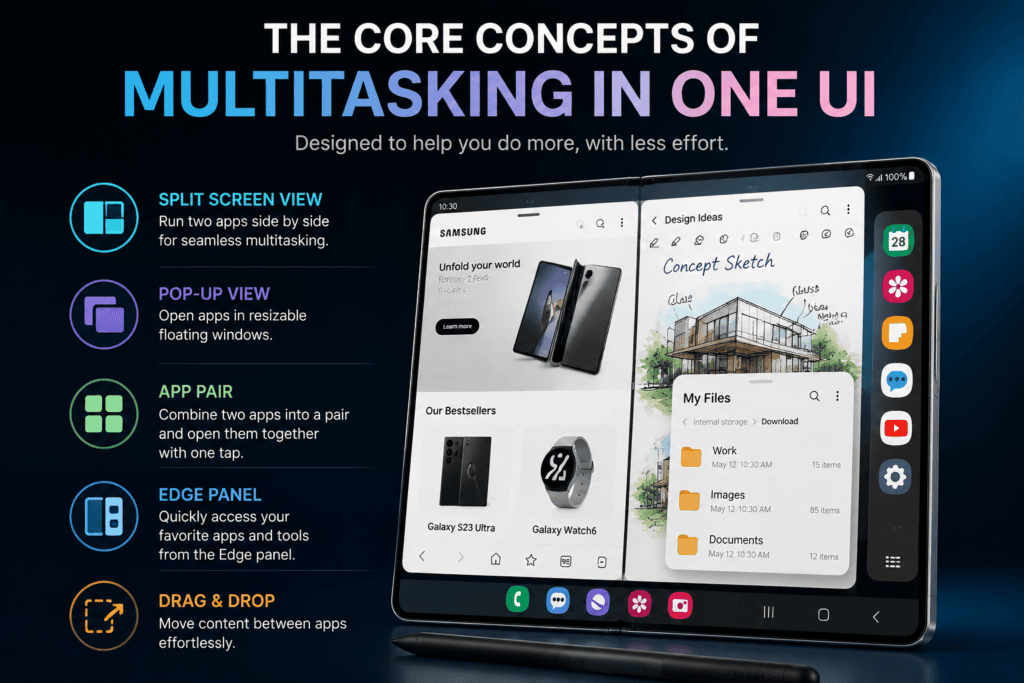
The Core Concepts of Multitasking in One UI
The genius of One UI’s approach is its ability to scale your interaction from a single app to a multi-window environment. It’s built on a hierarchy of modes, each designed for a specific context.
Understanding the Multitasking Modes
-
Full Screen: The default, focused mode for consuming content or performing a single task.
-
Pop-up View: An app window that floats on top of the current screen. Perfect for quick interactions, like replying to a message or using a calculator. It’s the digital equivalent of having a sticky note on your desk.
-
Split Screen: Two apps displayed side-by-side or top-and-bottom. The ideal mode for comparing information, like opening a banking app next to a budgeting spreadsheet or viewing a document while writing an email.
-
Samsung DeX: The ultimate productivity mode. It delivers a desktop-class interface on a connected monitor, TV, or PC, allowing you to open multiple resizable windows simultaneously.
The Multitasking Menu: Your Command Center
The easiest way to access these modes is via the Multitasking Menu, which appears when you tap the “Recent Apps” button (the three vertical lines on the bottom-left of your screen).
-
Navigate to your Recent Apps.
-
Tap the app icon at the top of the preview card.
-
The menu will appear with options: Open in split screen view, Open in pop-up view, and App info.
This single menu is the key to controlling your multitasking environment. From here, you can also access the Edge Panel, a launcher that makes multitasking even faster.
Beginner’s Guide: Getting Started
This section is for those who are new to multitasking or are unsure where to begin. Let’s get you set up.
How to Open Apps in Split Screen View
This is the most common multitasking method.
-
Open your first app (e.g., Samsung Internet).
-
Open the Multitasking Menu.
-
Tap the app icon on its preview card and select Open in split screen view.
-
The app will lock to the top or left half of the screen, and the bottom/right half will show your app tray.
-
Select your second app from the app tray to open it.
How to Open Apps in Pop-up View
This is the fastest way to handle small, quick tasks.
-
Open your first app (e.g., YouTube).
-
Open the Multitasking Menu.
-
Tap the app icon and select Open in pop-up view.
-
The app will shrink into a small floating window.
-
You can then open a second app, and the first will remain floating on top.
How to Access the Edge Panel
The Edge Panel is your shortcut to multitasking. It can be a game-changer for your workflow by giving you instant access to your most-used apps and tools.
-
Swipe from the Edge: By default, the Edge Panel is a thin, transparent handle on the right side of your screen. Swipe inwards from the handle to open it.
-
Customize the Edge Panel:
-
Swipe open the Edge Panel.
-
Tap the settings gear icon (⚙️) at the bottom-left of the panel.
-
You can change the handle’s position, color, and transparency.
-
Choose which panels you want to show. The Apps edge is most relevant for multitasking.
-
Tap the Apps edge panel, then tap the + (plus) icon to add apps. You can create custom folders for your most-used app pairs.
-
How to Use the Edge Panel for Quick Multitasking
This is the most efficient way to start a split screen.
-
Open your primary app (e.g., Gmail).
-
Swipe open the Edge Panel.
-
Find the app you want to open alongside Gmail.
-
Drag the app icon from the Edge Panel into the main screen area. A blue box will appear outlining where the app will be placed. Choose to snap it to the top, bottom, or side of the screen.
-
Release the icon to launch the app in Split Screen view.
Intermediate Techniques: Building Your Workflow
Now you know the basics. The real power of One UI lies in the subtle techniques that make multitasking feel frictionless.
Using Edge Panel for Drag-and-Drop
A hallmark of the One UI experience is the seamless drag-and-drop functionality. It’s an incredibly intuitive way to move data between apps.
-
Open the source app (e.g., My Files) in split screen with a target app (e.g., Samsung Notes).
-
Select your content: Tap and hold on a file, image, or text. It doesn’t open the file; you’re just selecting it.
-
Drag: While still holding your finger on the screen, drag the content over to the other app.
-
Drop: Release your finger. One UI will intelligently insert the content into the target app (e.g., inserting an image in a note or adding a file as an attachment in an email).
This is far more intuitive than the “copy-paste” dance on a phone and makes split-screen truly productive.
Mastering Pop-up View
Pop-up view offers a surprising amount of control for a small window.
-
Minimize to an Icon: Tap the minus (-) button at the top of the pop-up window. This will shrink the app into a floating icon (like a chat head) that you can move anywhere on your screen. Tap the icon to pop the app back up.
-
Full Screen and Snap: Tap the double square icon to instantly snap the pop-up back into full-screen. Tap the pin icon to keep the pop-up on top of all other windows, even when you tap elsewhere.
-
Adjust Size and Position:
-
Move: Tap and hold the thin bar at the top of the window (or anywhere on the blue border) to drag it around the screen.
-
Resize: Tap and drag from any corner of the pop-up window to make it larger or smaller.
-
Gesture Navigation for Multitasking
If you’ve switched to gesture navigation (swipe up from the bottom to go home), the multitasking experience becomes even more fluid.
-
Recent Apps: Swipe up from the bottom and hold slightly. It’s the same as pressing the Recent Apps button.
-
Quick Switch: Swipe horizontally along the very bottom of the screen. This is a fantastic hidden gesture. It acts like “Alt+Tab” on a PC, allowing you to instantly snap back to your most recent app without opening the Recent Apps view.
A Comparative Look: Tablet vs. Phone
While the principles are the same, the larger screen of a Galaxy Tab makes the experience more powerful.
| Feature | Galaxy Phone (One UI) | Galaxy Tab (One UI) |
|---|---|---|
| Primary Mode | Split Screen (vertical is common) | Split Screen (landscape is common) |
| Pop-up View | Great for quick replies. | Excellent for YouTube or a calculator while you work. |
| Edge Panel | Essential for fast split-screen launching. | Essential, but apps can be snapped into more positions (e.g., a 3-app grid). |
| Drag & Drop | Good, but limited by screen real estate. | A core productivity feature with more space to maneuver. |
| DeX Integration | Available on premium models (e.g., S Ultra series). | Integrated seamlessly when connected to an external monitor. |
| Best Use Case | On-the-go productivity (e.g., mapping + browsing). | Dedicated work sessions (e.g., note-taking + web research). |
Advanced Techniques & Expert Analysis
For the power user, One UI offers a significant degree of customization and functionality that is often overlooked.
A Deep Dive into Multi Window Settings
To truly master multitasking, you need to configure how it works. Go to Settings → Advanced features → Labs (or Multi window). Here, you’ll find controls that are often hidden away.
-
Show Multi window button with recent apps: This adds a split-screen toggle directly on the preview card. It’s a minor change but one that significantly speeds up your workflow.
-
Pop-up view shortcut (swipe from corner): This is one of One UI’s most powerful hidden features. When enabled, you can swipe diagonally from any corner of the screen to shrink the current app into a pop-up window. It’s an instant, gesture-based shortcut that feels incredibly fluid once you get used to it.
-
Make pop-up view full screen by moving upward: A small but thoughtful gesture. When an app is in pop-up view, just drag it to the top of the screen to return it to full-screen mode.
-
Open as pop-up view from notification: A subtle but powerful option that should be enabled. It allows you to long-press a notification (like a message) and choose to open the app as a pop-up, keeping you in your current context.
Creating App Pairs (Shortcuts to Instantly Launch Split Screen)
If you always find yourself using the same two apps together (e.g., YouTube and Samsung Notes for research), you can create an “App Pair.” This creates a single shortcut that opens both apps in split screen instantly.
-
Open the Multitasking Menu.
-
Tap the app icon at the top of one of your recent apps.
-
Select Open in split screen view.
-
Select your second app from the app tray.
-
With both apps open side-by-side, tap the two-dot handle in the center of the divider bar.
-
Tap the App Pair icon to create a new shortcut. This icon will be saved to your Apps screen and the Edge Panel.
Advanced Tips for Pop-up View
Pop-up windows are deceptively powerful. Here’s how to use them like an expert.
-
Multi-File Management: The pop-up view is perfect for file management. For instance, you can open My Files as a pop-up and leave it floating while you browse the web in full screen. When you find a file you need, just drag it from the pop-up into the web browser.
-
Contextual Quick Replies: Ever been in a full-screen game and needed to text someone back? Instead of minimizing the game, open the messaging app in pop-up view. Reply, then dismiss it with a quick flick. For the fastest access, enable “Open as pop-up view from notification” in Settings.
Real-World Scenarios
Here are some practical workflows to illustrate the power of One UI:
-
Scenario 1: The Mobile Professional (Sales or Consulting)
-
Apps: Gmail + Google Calendar + Samsung Notes (pop-up).
-
Workflow: You’re on a train with limited time. You open Gmail on the left and your calendar on the right. A client emails you asking for a meeting. You check your availability on the calendar and use Samsung Notes in a pop-up to jot down a brief plan before replying.
-
-
Scenario 2: The Student Researcher
-
Apps: Samsung Internet + Samsung Notes.
-
Workflow: You’re researching a paper. You open a web article in split screen and Samsung Notes on the right. You read the article and use the S Pen (or your finger) to drag a map or a key quote directly from the browser into your notes. The image or text is seamlessly inserted.
-
-
Scenario 3: The Digital Organizer
-
Apps: My Files + Google Photos.
-
Workflow: You have a messy Downloads folder. You open My Files and Google Photos in split screen. You can now scroll through your files and photos, and drag-and-drop images from My Files into a Google Photos album for organization without switching back and forth.
-
-
Scenario 4: The Content Creator (Instagram)
-
Apps: Instagram + Google Keep.
-
Workflow: You want to post a new photo to Instagram. You open Instagram on the left and Google Keep on the right. You can reference your pre-written caption in Keep while you type the text in Instagram, ensuring you don’t miss any key details or hashtags.
-
Common Mistakes and How to Avoid Them
Even power users can fall into traps. Here are the most common mistakes and how to avoid them.
-
Over-Using Split Screen: Trying to run two demanding apps (like a game and Google Maps) simultaneously can cause lag and reduce performance, as apps are competing for resources. Use Split Screen for complementary tasks, not resource-intensive ones.
-
Ignoring the Edge Panel: The Edge Panel is arguably the fastest way to enter split-screen mode. Relying on the slower “Recent Apps” menu is a missed opportunity for a more fluid workflow.
-
Leaving Too Many Apps in Pop-up View: Pop-ups are for quick, transient tasks. Leaving them open clutters your interface and consumes resources. Always close (or minimize to an icon) pop-up windows after use.
-
Missing Hidden Settings: Many users never explore the “Labs” or “Multi window” settings. By not enabling shortcuts like “swipe from corner for pop-up view,” you are leaving significant efficiency gains on the table.
The Ultimate Multitasking Checklist
For quick reference, here is a checklist to optimize your One UI multitasking setup:
- □
Enable “Multi Window” in Settings → Advanced features.
- □
Enable “Show Multi window button” for a faster split-screen toggle.
- □
Enable “Pop-up view shortcut” (swipe from corner) for instant pop-ups.
- □
Enable “Open as pop-up view from notification” to keep your workflow intact.
- □
Customize Your Edge Panel: Add your most-used apps, and create app pairs for frequent split-screen combos.
- □
Create App Pairs: For your most common split-screen workflows (e.g., Gmail+Calendar).
- □
Learn the Gestures: Practice the horizontal swipe to instantly switch between apps.
- □
Master Drag-and-Drop: Practice dragging text and images between apps to build muscle memory.
Samsung DeX: The Desktop Experience
While you can use One UI on a phone or tablet, Samsung DeX is a game-changer for those who need a PC-like experience.
DeX doesn’t require a PC. It’s a mode you activate on your phone. When you connect your Galaxy device to a monitor or TV (via HDMI or wirelessly), DeX transforms the interface into a desktop environment. It’s a complete shift in how you interact with your apps, designed for the larger screen.
In this desktop mode, windows can be freely moved, resized, and layered. This is where the multitasking in One UI truly comes into its own. You can have a web browser for research, a word processor for writing, a chat app for communication, and a file manager, all open and visible simultaneously. You can run multiple browser tabs, work in spreadsheets, and have a video call all at once.
This is the key distinction: the multitasking features on the phone are preparing you for the powerful, multi-window experience that DeX delivers.
Future Trends and Expert Recommendations
Multitasking is an area of constant evolution. Here are the trends to watch and our final expert recommendations.
Future Outlook
-
AI Integration: Expect “smart” multitasking where the phone suggests launching a specific app in pop-up view based on context. For example, if you copy a phone number, One UI might proactively offer to open a pop-up dialer.
-
Enhanced Inter-app Connectivity: The drag-and-drop functionality will likely extend to more apps and support more data types, mirroring the seamless connectivity of a desktop OS.
-
Better Cross-Device Continuity: Multitasking will become a consistent experience across all your Galaxy devices (phone, tablet, watch). You might start a task on your phone in split-screen and seamlessly continue it on your tablet or a DeX monitor.
Expert Final Recommendations
-
Configure First, Then Use: Spend the initial 15 minutes exploring the “Labs” and “Edge Panel” settings. The time you invest in setup will be paid back many times over in saved seconds and a more fluid workflow.
-
Treat the Phone as a Workstation: Whenever you feel a “friction point”—like needing to check a number while texting—ask yourself, “Is there a faster way to do this in One UI?” It’s likely there is. The advanced features are designed to solve these exact problems.
-
Embrace the Full Ecosystem: The true power of One UI is realized when you combine it with a Galaxy Tab and DeX. The seamless experience across devices is what makes the ecosystem so compelling for productivity.
Conclusion
Samsung’s One UI offers one of the most robust and flexible multitasking systems available on any mobile device. It’s not just a single feature; it’s a comprehensive suite of tools—Split Screen, Pop-up View, Edge Panel, App Pairs, and DeX—that work together to create a fluid and adaptable workflow.
The key to mastery is understanding not just the how, but the when and why. From the beginner swiping open the Edge Panel to the professional using DeX as a desktop replacement, One UI adapts to your needs. By applying the techniques and strategies in this guide, you can eliminate friction, boost your productivity, and genuinely transform the way you use your Galaxy device.
Key Takeaways
-
One UI provides a hierarchy of multitasking modes: Full Screen, Pop-up View, Split Screen, and DeX.
-
The Edge Panel is your most efficient shortcut for launching split-screen and pop-up apps.
-
Drag-and-drop is a core productivity feature that makes moving content between apps seamless.
-
The hidden settings in the “Labs” menu unlock powerful gesture controls and workflow shortcuts.
-
Samsung DeX elevates the experience to a desktop-class environment, enabling true multi-window productivity.
Frequently Asked Questions (FAQ)
Q1: How do I turn off split screen on my Samsung phone?
To close split screen, simply drag the divider bar in the center all the way to the top or bottom of the screen. Alternatively, tap the two-dot handle in the center and select the X icon on the app you want to close.
Q2: Can I use Split Screen with any app?
While most apps support Split Screen, some games, camera apps, and certain banking or security-focused apps may not. One UI will notify you if the app is not supported.
Q3: What is the difference between Pop-up View and Split Screen?
Pop-up View creates a floating window that can be placed on top of any other app. Split Screen tiles two apps in a fixed grid, giving them each an equal half of the screen (though you can resize the grid).
Q4: How do I create an App Pair?
Open the Multitasking Menu, open your first app in Split Screen, select your second app, and then tap the two-dot handle in the middle of the divider. You’ll see an option to create a new App Pair shortcut.
Q5: My phone is laggy when multitasking. What can I do?
Multitasking is resource-intensive. Close any background apps you’re not using. Also, ensure your phone’s software is up-to-date, as Samsung regularly releases performance optimizations.
Q6: How do I make an app always open in Pop-up View?
You can’t set it to always open in pop-up, but you can quickly trigger it. Enable Pop-up view shortcut (swipe from corner) in the Multitasking settings to instantly pop-up any app with a simple gesture.
Q7: Is DeX the same as multi-window?
No. DeX is a separate “desktop mode” that provides a full interface with a taskbar and multiple resizable windows. Multi-window is the suite of tools (Split Screen, Pop-up View) you use on your device’s regular interface. Both are part of the One UI ecosystem.
Q8: How do I use drag-and-drop?
First, ensure you are in split-screen mode with two apps open. Tap and hold on an item (like a photo in My Files or text in a web browser) until it lifts up. Drag it over to the other app and release it to drop it.
Q9: What is the Edge Panel’s main benefit for multitasking?
The Edge Panel allows you to launch apps directly into Split Screen. Instead of opening an app, finding the recent apps menu, and then choosing split screen, you can drag an app from the Edge Panel to instantly snap it next to your current app.
Q10: Does multitasking consume more battery?
Yes, running multiple apps simultaneously will use more battery power than a single app. However, One UI is highly optimized, and modern Galaxy devices are designed to handle this efficiently.